November 16, 2026
Twitch and the GTA 6 launch: a countdown for your stream
Prepare your GTA 6 stream with a clear start time, an OBS countdown and a rehearsed transition, using Twitch’s announced launch campaign as the backdrop.
On November 13, 2026, Twitch presented its GTA 6 launch celebration at TwitchCon San Diego: themed emotes and badges, Heist Trains on participating streams, and surprise game code giveaways. The Twitch announcement (opens in a new tab) and Net Influencer’s coverage (opens in a new tab) describe those launch plans.
Rockstar still lists November 19, 2026 as the release date (opens in a new tab), and Twitch places its celebration between launch and November 30, 2026. If you are preparing streams during that period, one task can be settled in advance: explain when your show starts and what viewers will see while they wait.
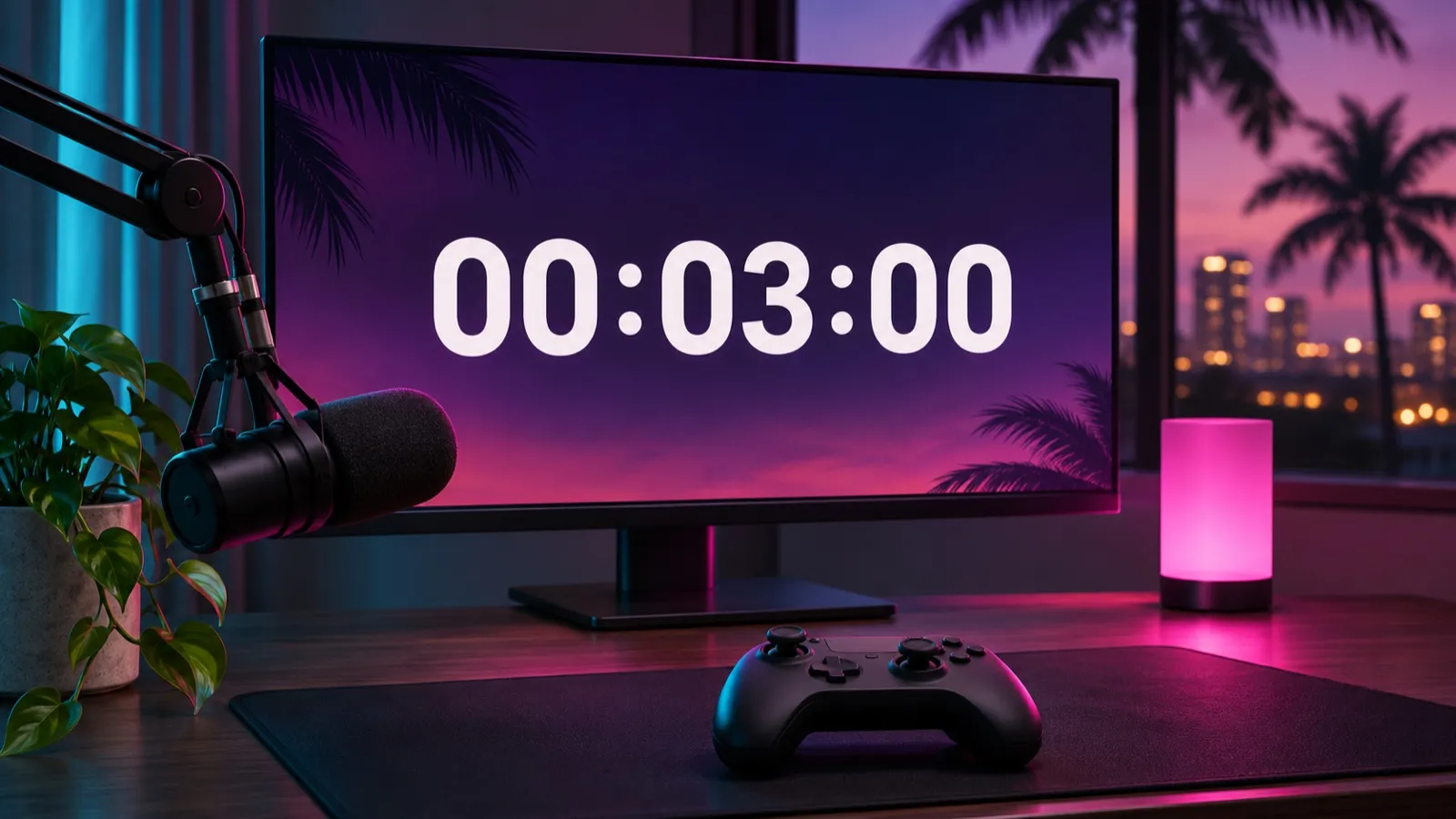
Editorial illustration of a setup prepared for a stream’s waiting scene.
Announce when your show starts
Choose the time you will appear on camera or start playing. That is the moment your countdown should point to. The game’s release date and the start of your broadcast are different references; announcing your own schedule lets you prepare a start time you can deliver.
Write down the date, time and time zone. For example, “We start on November 19, 2026 at 20:00 Madrid time” would be a fictional announcement for your channel, not an official unlock time. If your plan depends on the game being available, first confirm the information for your platform and region.
Keep the same announcement in your channel posts, description and waiting scene. If you go live ten minutes early, the countdown should still point to the advertised start of your show. Early arrivals can then understand what they are waiting for without having to ask in chat.
Give the waiting scene context
Alongside the clock, display a short message explaining what begins at zero: your pre-show, first impressions or gameplay session. A countdown to “We’re on camera” and one to “Gameplay starts” make different commitments. Choose the one that matches your plan.
Keep the timer in a stable position and give it contrast against the background. Check the composition at phone size: viewers should be able to read the show’s name and the numbers without zooming in. If you add animation, make sure it does not compete with the text.
Twitch’s campaign supplies the timely context; the countdown presents your own schedule. Twitch sets the terms for emotes, badges and game codes. Check the announcement if you plan to mention them, and keep the timer’s label focused on what starts on your channel.
Decide what happens at zero
Prepare the scene you will show next and rehearse the manual switch in OBS. Reaching zero does not switch scenes or launch the game by itself. If your show starts with chat questions, move to the camera first; if it starts with gameplay, check the capture and audio beforehand.
Have a message ready for a delay too. If you cannot start, update the on-screen explanation and communicate the new plan. A static zero does not explain what happened. Before reusing the scene for later sessions that week, check its end date and text.
Set up the countdown and rehearse the sequence
In OverlayOn, you can choose a template, adjust colors and fonts, and set the timer’s end date and time. For this fixed schedule, use the countdown with an end date. The clock then supports the start you have announced to your audience.
Copy the overlay URL into the waiting scene as a browser source in OBS (opens in a new tab). Size it to suit the design and check the program output as well as the editor preview. Have both the waiting scene and content scene ready for rehearsal.
Make a local recording with a test end time one minute ahead. Check that the seconds advance, read the message at a reduced size, and switch scenes manually when the clock reaches zero. Listen to the audio too: decide whether the music should continue or stop when you appear on camera.
After rehearsing, restore your show’s real date and time and check the time zone again. That final step avoids broadcasting with the test configuration. With the sequence prepared, you can use the opening to greet viewers and explain the session’s plan.
Prepare your GTA 6 stream countdown in OverlayOn and rehearse the move from waiting scene to content before your next broadcast.