October 5, 2026
Stream-o-Ween: prepare your Halloween stream screens in OBS
Twitch launched Stream-o-Ween on October 1, 2026. Prepare matching Halloween starting and ending screens that stay readable and work in OBS.
On October 1, 2026, Twitch announced Stream-o-Ween (opens in a new tab), a Halloween celebration running from October 1 through 31. If you are planning a themed stream, the news raises a straightforward production question: how do you introduce the show and say goodbye with a recognizable visual style, without turning every scene into a collage of pumpkins?
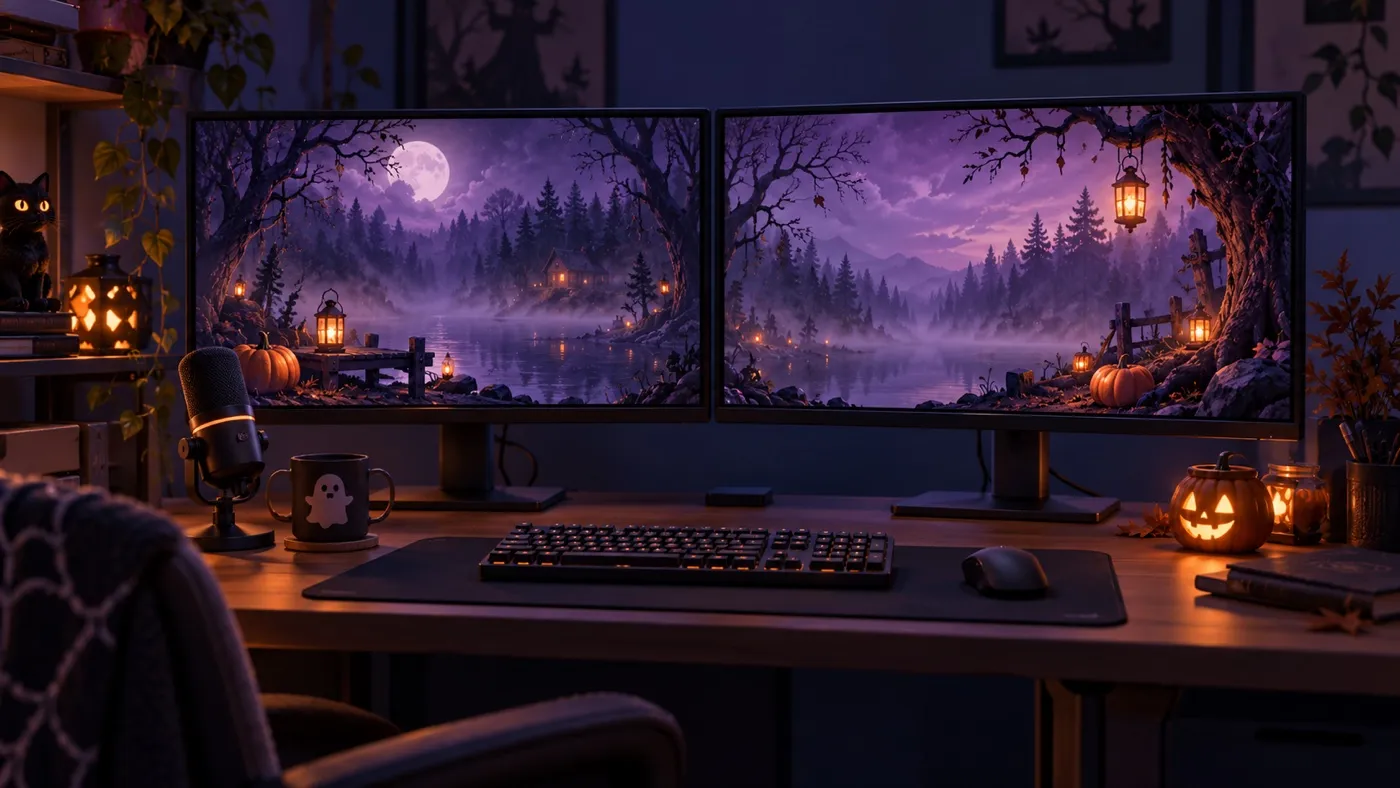
This article proposes preparing two complementary screens: one for the start and another for the end. That is an editorial recommendation for presenting your own show, not a Twitch requirement or a formula for attracting a larger audience. The goal is specific: both scenes should communicate what is happening and look like part of the same channel.
What Twitch announced for Halloween
According to Twitch, Stream-o-Ween brings together horror, art, costumes, games, cooking and other activities. The platform also announces featured placements on its homepage and explains that streaming in an eligible category and applying the event tag gives you a chance to be featured. That placement is not guaranteed; check the official instructions before configuring your stream.
Appmaxx's coverage from October 3, 2026 (opens in a new tab) outlines the schedule and the use of the tag. Those mechanics belong to Twitch. Designing a screen in OBS does not replace setting up your participation in the event or determine which channels are featured.
A seasonal presentation does not require a channel redesign
For a creator planning a horror gaming session, a makeup workshop or a cooking show, the opening can explain the plan before the camera appears. The ending can provide a clear farewell once the activity is over. These are different moments, and viewers should be able to recognize them without having to interpret the decorations.
You do not need to change your channel's entire identity to achieve this. If your usual design uses a dark background, a purple accent and simple typography, keep that foundation and add a seasonal element. Changing the colors, composition and lettering style all at once can produce two screens that look appealing individually but feel disconnected from the rest of the broadcast.
Think of Halloween as a temporary layer over a stable identity. The same structure can work for a winter session, an anniversary or a gaming night. When the campaign is over, you can keep the production approach and change the visual theme, instead of starting from scratch.
Define a visual language before generating images
Start with a small brief shared by both screens. Describe the setting, dominant colors, level of detail and space needed for the text. Decide whether you want a calm, playful or unsettling atmosphere. Making those decisions explicit is more useful than simply asking for a spectacular Halloween screen.
One possible visual direction would be an illustrated forest at night, soft mist, purple lighting, small orange details and a clear area for the main message. This is not a Twitch instruction or a mandatory recipe; it is a way to give the two scenes a shared starting point. For the ending screen, you could keep that setting with a calmer composition.
Work with original motifs rather than relying on a recognizable game character. Keep the most eye-catching elements around the edges and give the message room to breathe. If you need to correct a message or date frequently, it is practical to keep it separate from the background in an OBS text source, rather than building it into the illustration.
Give the opening and ending different jobs
The starting screen should identify the show and make it clear that it has not begun yet. A short name and a message such as “Starting soon” may be enough. Avoid including a specific time unless you will keep it up to date. There is also no need to draw a countdown that does not correspond to an actual timer.
The ending screen needs a different message: the session is over. A brief farewell and the channel name are usually clearer than reusing the opening with only a decorative change. If you announce the next stream, check that the date is valid before going live and prepare a version without it when the schedule has not yet been confirmed.
Judge animation by its purpose, not its quantity. A static image may be enough for a short segment. A looping video can accompany a longer wait, but test that the movement does not compete with the message and that the repetition does not feel abrupt. Slow mist can create atmosphere; rapid flashes can distract viewers and make the text harder to read.
Add both screens to OBS and check the output
Prepare a starting scene and an ending scene with names that are easy to distinguish. If a screen is published through a URL, add it as a browser source: the official OBS documentation (opens in a new tab) explains that this source loads a web address and lets you configure the width and height of its display area. For a Full HD screen, use 1920 × 1080 and check how it fits your canvas.
Also review what happens when you hide the source and activate the scene again. OBS provides options to temporarily shut down a browser source while it is not visible and to refresh it when the scene becomes active. Choose that behavior after testing it: if you use animation, you will want to know whether it restarts or continues when you return to it.
Look at the actual output, not just the scene thumbnail. Make a short recording, play back the switch from the opening to the content and then to the ending, and check that no camera or microphone remains active by mistake. Check the text on a phone as well: if it disappears among branches, smoke or shadows, simplify the background before adding more decorations.
Rehearse the complete show, not just the opening screen
Before going live, run through the scene sequence using the same controls you will use during the broadcast. Leave the opening visible, switch to the content and finish on the farewell. Check the messages, audio and transition. Save a static alternative in case an animation or web source does not load as expected.
The test should answer three questions: is it clear that the stream is about to start? Is the transition into the content clear? Does the final screen confirm that you have finished? If any answer depends on explaining the design, revisit the message. The decorations support that sequence, not the other way around.
To turn that brief into two specific screens, OverlayOn lets you choose a starting or ending screen, describe its style and generate a static image or looping video. Keep the setting, colors and message area consistent in both descriptions; then review each result and publish its URL to add it as a browser source in OBS.
That gives you a way to prepare a visual pair for your Halloween show from one creative direction, without confusing it with participation in Stream-o-Ween: the tag and featured selections still depend on Twitch. To try this workflow, create your starting and ending screens in OverlayOn (opens in a new tab) and rehearse the full transition before going live.