November 26, 2026
GTA VI launch marathons: stream screens to cover your breaks
Prepare GTA VI marathon breaks with a background generated in OverlayOn and editable OBS text, so you can update your return time without regenerating the image.
In its November 20, 2026 report (opens in a new tab), Streams Charts documented GTA VI marathons that stayed live while their creators slept. For someone preparing a long broadcast, that example raises a practical question: what does a viewer see when they arrive during a break?
Twitch places its GTA VI activities between November 18 and 30, 2026 (opens in a new tab). That calendar provides context for planning your own sessions, including gameplay and rest. This guide proposes preparing a scene that explains the state of your show while the broadcast remains active.
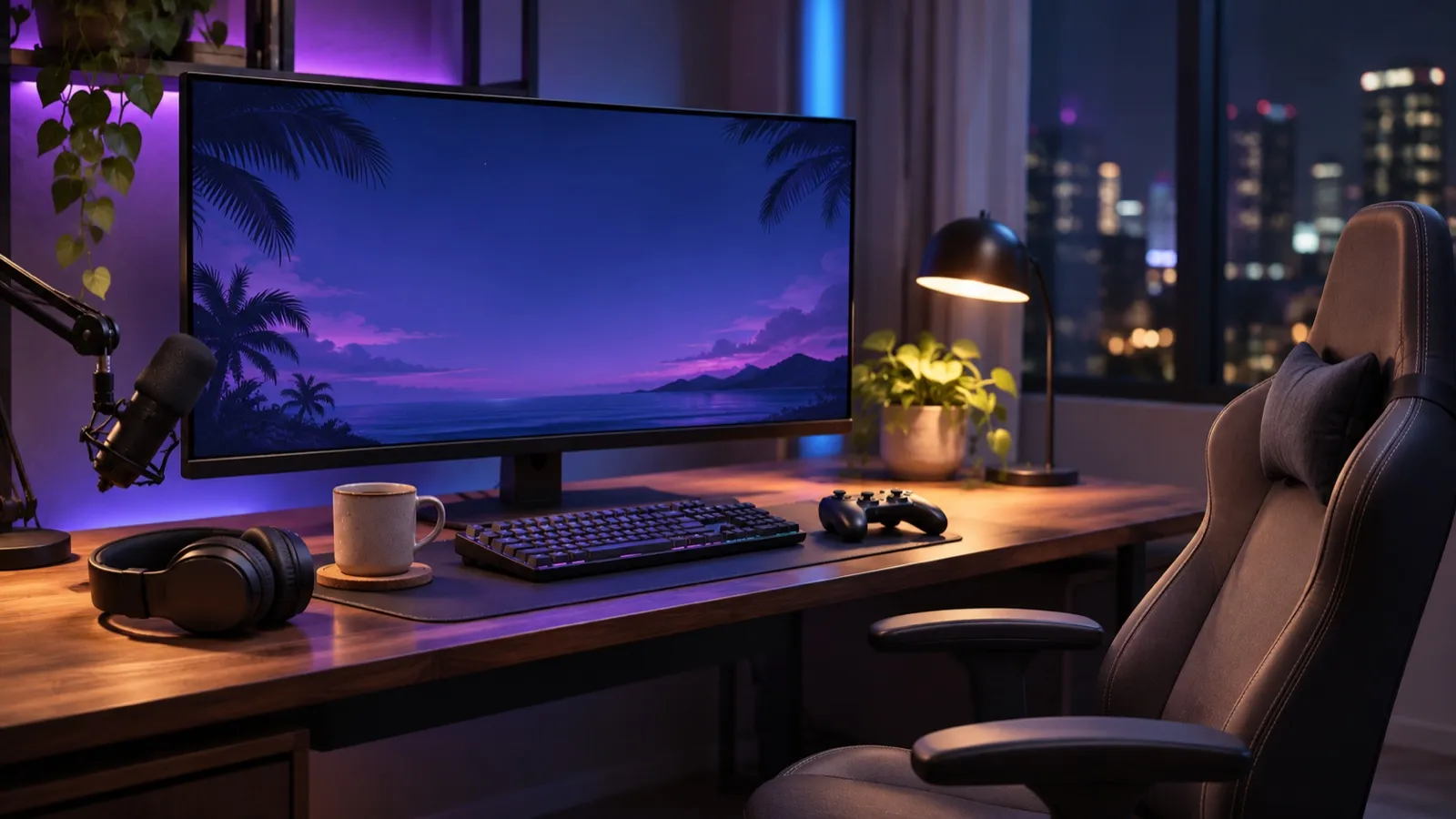
Editorial illustration of a studio prepared for a broadcast break.
Decide what the break means
Write down which content you are interrupting, whether the broadcast will stay live, and what you can say about your return. A short break, a longer rest and the end of a show need different messages. Choose the message before designing the background.
If you know the schedule, include the date, time and time zone. “Back on November 26, 2026 at 22:00 Madrid time” would be a fictional example, not a quote from a creator. Including the date helps when a break crosses midnight or your audience is in another country.
If you do not yet know when you will return, say that the show is on a break and the time is still to be confirmed. Update the notice when you have a plan. A break screen should explain what you can communicate at that moment.
Keep the background and separate the message
Prepare a composition with room for one or two lines. A background with few elements makes it easier to reserve space for the schedule; then check readability at the size viewers will see, including on a phone.
Text drawn by AI inside an image or video is part of the generated file. Changing the prompt does not edit the lettering in the asset you already have. To reuse the design for other breaks, keep the return date and time in a separate OBS text layer.
You can then keep the same image and change “Back at 22:00” in a text source’s properties. If you prefer the lettering to be part of the generated design, you will need to generate another asset when the message changes. Choose that approach knowing how you will update it.
Prepare the background with OverlayOn
OverlayOn’s AI screens appear as Starting Soon and Ending Stream. To announce your return, choose the opening screen: it will introduce the next segment. Check that the integrated wording suits that moment, and add the break notice and return time in OBS.
Choose an image or looping video and describe the style. For example: “Nighttime studio, blue and purple tones, calm composition, opening message and free space at the bottom for an additional notice”. Leave the time out of the generation, and check the wording, spelling and space available for your OBS text.
For an image, compare the three 0.5 MP previews, select the one you want, and confirm it to obtain the upscaled 1080p version. For video, review the 1080p result and watch several repetitions. Check the loop you have obtained before using it for a long break.
Set up both layers in OBS
Copy the overlay URL into a break scene as a browser source (opens in a new tab). Fit the source area and composition to the canvas you use for broadcasting.
Then add an OBS text source (opens in a new tab) containing your return message. Put it above the background in the Sources list so it stays visible; the Sources Guide (opens in a new tab) explains this order. Edit the message in that source when your schedule changes.
Choose a size and contrast that make it readable without zooming in. Review the audio too: decide which microphones, music or game sounds should be audible during the break, and check the actual program output.
Rehearse leaving and returning
Make a short local recording: switch from gameplay to the break, change the time in the text, and switch back to the content scene manually. Play the recording to check the picture, message and audio across all three stages.
Before going live, replace any test text with your real plan. A time displayed on screen tells viewers about your return; it does not switch scenes automatically. If the show ends, update the message and finish the broadcast according to your plan.
Prepare your next segment’s opening screen with OverlayOn, add the editable message in OBS, and prepare your return before your next session.