September 14, 2026
Queens Cup Mexico: commentate without losing track of the score
The return of Queens Cup Mexico offers a lesson for your streams: prepare teams, goals and the clock before commentating on each match in OBS.
Queens Cup Mexico has now completed its opening matchday: the official schedule (opens in a new tab) shows four completed matches. The Fanki listing for this creator-linked cup (opens in a new tab) places the start on September 12, 2026, at El Domo in Mexico City. Its return brings a practical task into focus for anyone providing live football commentary: making it clear which match you are covering.
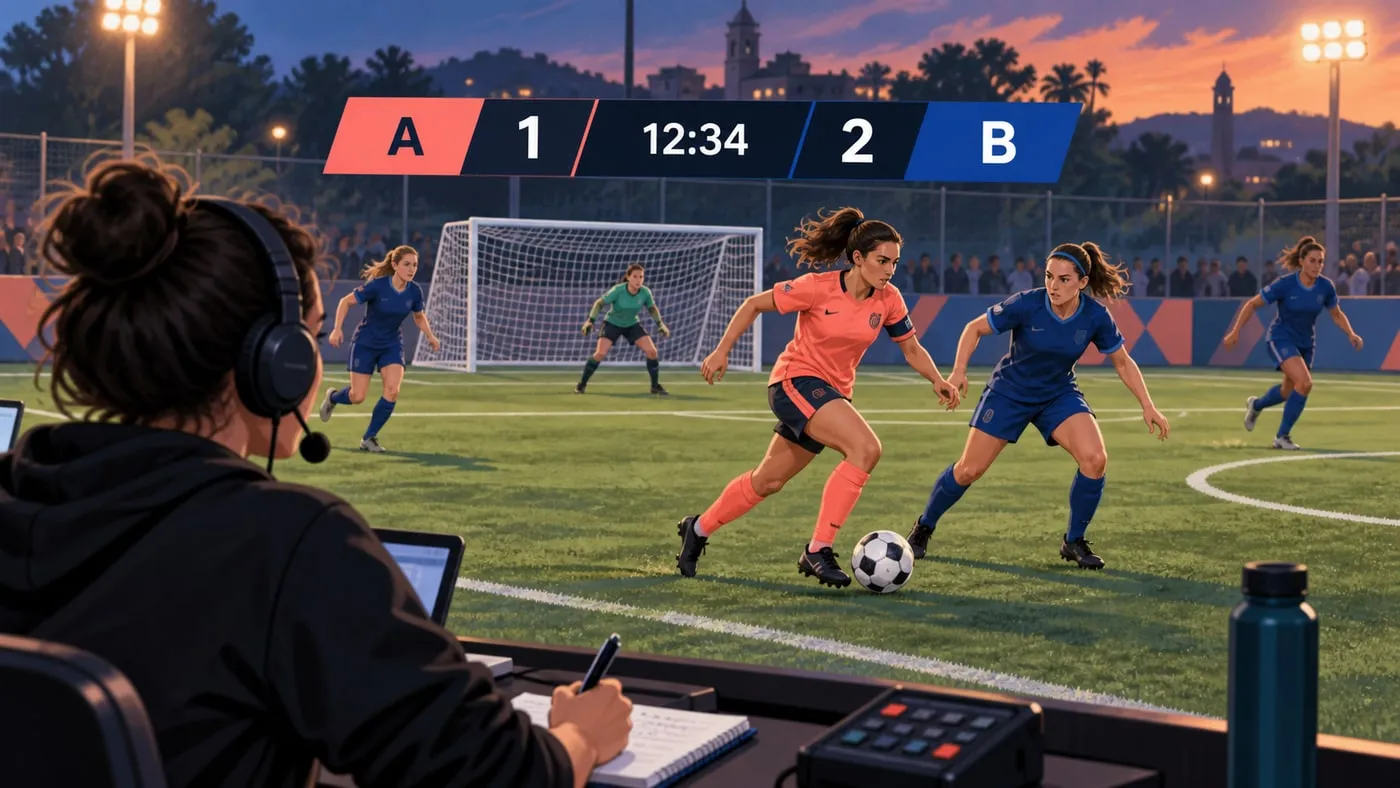
Editorial illustration; it does not depict an actual match or an official scoreboard.
For a commentary stream, covering several matches back to back involves something less eye-catching than a flashy animation: changing the teams, clearing the previous score and deciding who operates the clock. If that transition goes wrong, you could be talking about the next match while your screen is still telling the story of the previous one.
The news is the matchday, not a promise of viewers
The background was already there. Excélsior reported on August 19, 2026 (opens in a new tab) that the Mexican women’s cup would feature eight teams. That detail helps put the tournament in context, but it predates the start: the news here is that the first matchday has taken place.
What is new is the start of the competition, not a fresh announcement of rules.
The editorial opportunity is to contribute your own commentary to the sporting conversation, supported by a production that viewers can follow. That does not guarantee an audience or make every reaction stream an authorized broadcast. Before using match footage, audio or someone else’s branding, check the applicable permissions. Adding a scoreboard to your scene does not give you those rights.
It also helps to distinguish between two needs: explaining the match and reproducing all the competition’s data. For the first, identifying both teams, showing confirmed goals and keeping a consistent time reference may be enough. The second requires additional sources and tools. This guide proposes a manual workflow for match commentary; it does not replace an official results system.
Three details that should not depend on chat
Imagine someone joining your stream halfway through. They might hear you discussing a scoring chance without knowing who is playing, what the score is or how far into the match you are. A persistent graphic can display that information without you having to repeat it constantly. Its usefulness depends on the accuracy of the details, not how much screen space it takes up.
First, identify the teams. Check that each side’s name matches the fixture you are about to cover and that your notes list them in the same order. Avoid ambiguous abbreviations, and do not leave sample team names in place for convenience. If you use crests, only use assets you have permission to display; team names can identify the sides without including those files.
Next, put one person in charge of the score. A chat message might alert you to a possible goal, but it should not trigger an automatic change in your scene. Decide which source you will consult and update the score when you can confirm what happened. If a correction is needed, change the information and briefly explain it, without leaving two conflicting versions on screen.
Finally, decide what your clock represents. It can be a timer you operate yourself, but you should not present it as synchronized with the official clock if it is not. Delays in the feed you are watching can also affect your time reference. Acknowledging that limitation is better than displaying precise seconds as though they guarantee accuracy.
The transition starts before you switch scenes
Prepare a short reference sheet for each match: both team names, the order of the sides and the source you will use to check goals. Keep it handy alongside a checklist. You do not need to turn it into a complex dashboard; you need to make sure the next match does not depend on remembering every change at the last second.
When a match ends, pause the clock and check that the displayed score matches what you have just covered. Before the next one, hide the scoreboard or switch to a holding scene. With the information off air, change both teams, reset the goals to zero and prepare the starting time you have decided to use.
Then check the view your audience will see. Having the correct names in the editor is not enough if OBS is still displaying a different source. Read both team names in the final scene, check the starting score and confirm that the clock is not still running. Only then bring the scoreboard back on screen.
If you are presenting and operating the controls yourself, set aside a specific moment for this transition. You can explain that you are preparing the next match while you run through the checks. If someone else is working with you, agree on a brief confirmation before returning to the match. Responsibility should be clear even when the workflow is simple.
Rehearse mistakes before you have an audience
Run a complete test with fictional teams. Add a goal to each side, correct one, start and pause the clock, and prepare a second match. Watch the result in OBS, not just in the configuration tab. This rehearsal checks both your control of the information and whether you are using the right source.
Check readability in a small window too. A scoreboard that is clear on your monitor may be hard to read on a phone. Keep names short, avoid covering important parts of your own scene and check the contrast. The priority is for viewers to recognize the match state at a glance.
The same test helps you decide when to remove the graphic. If you lose your reference for the match or cannot verify a change, you can hide it temporarily and explain what still needs checking. Displaying an outdated score just to fill space does not improve the stream. This discipline applies to both a multi-match day and a single fixture.
Bring that manual workflow into your OBS scene
To put it into practice without drawing every update, OverlayOn offers a Queens League scoreboard template with manually controlled team names, goals and clock. The template requires the Creator plan. Choose the template, create the overlay, replace the sample teams in the editor and add its URL as a browser source in OBS. During the match, update the goals and control the clock from the editor; between matches, reset the scoreboard and check the new teams before displaying it again.
It is a tool for that graphic, not an official feed or a way to automate special rules. It does not resolve broadcast rights either. If it suits your commentary workflow, open the Queens League template in OverlayOn (opens in a new tab) and rehearse the full transition before your next stream.