November 2, 2026
Golden Joystick 2026: prepare your awards preview in OBS
Plan a predictions stream ahead of the Golden Joystick Awards 2026, with a running order, matching opening and closing screens, and an OBS rehearsal.
The final Golden Joystick Awards voting round opened on 26 October 2026, covering Ultimate Game of the Year. The organiser’s calendar (opens in a new tab) placed that round on 26–30 October and the ceremony on 11 November 2026. Between voting closing and the awards being presented, there is room for a show of your own: discussing your favourites with your community.
The GamesRadar+ announcement (opens in a new tab) introduced Alix Wilton Regan as host, a confirmation GamesBeat covered on 27 October 2026 (opens in a new tab). Your channel’s task is smaller than producing an awards ceremony: prepare a predictions show with a recognisable opening, discussion and sign-off.
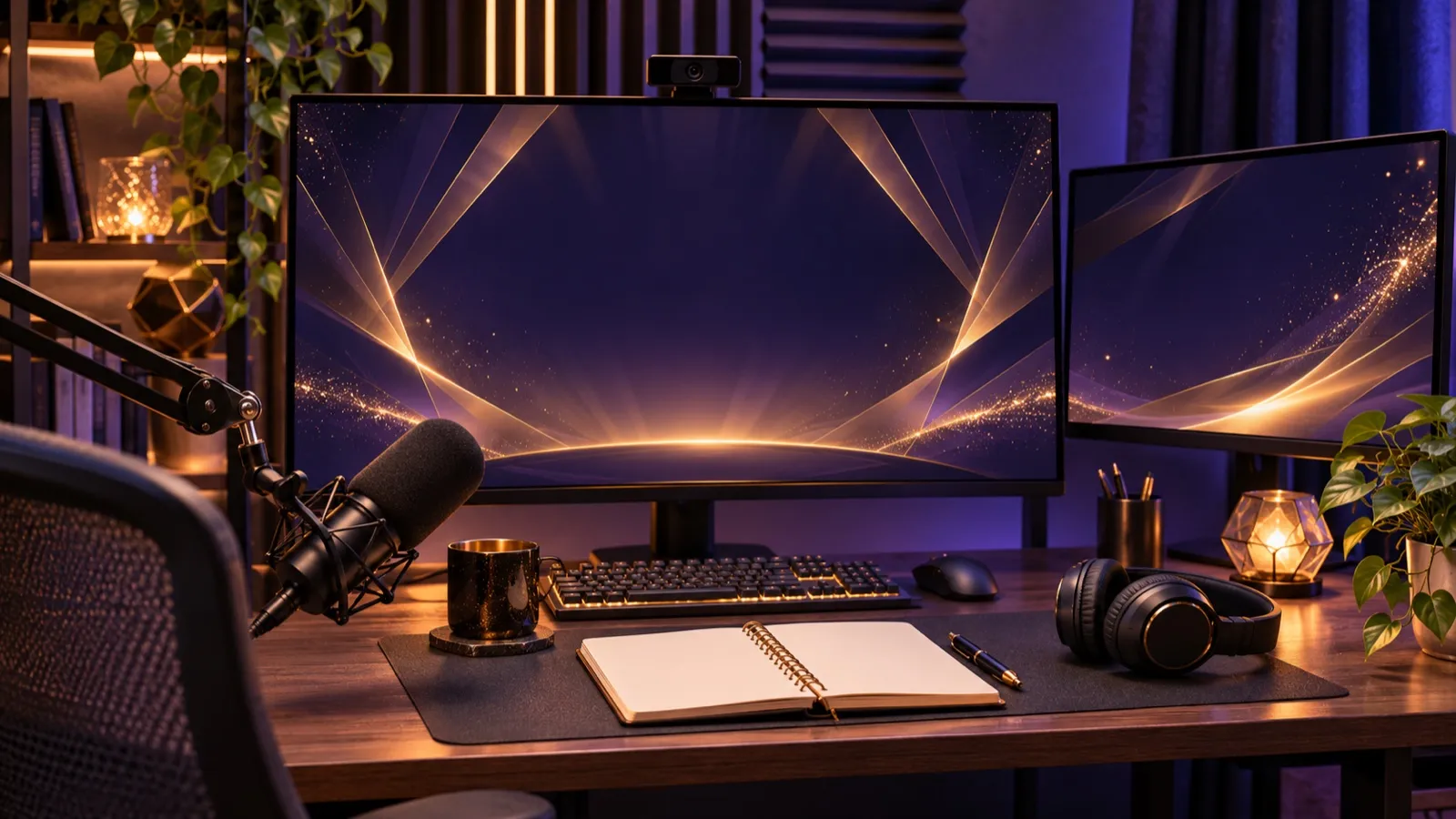
Editorial illustration of a studio prepared for a creator’s own video game awards discussion.
Place your show on the calendar
Introduce the stream as your channel’s preview. On this article’s publication date, 2 November 2026, the organiser’s voting window has closed and the ceremony is still scheduled for 11 November. Your title, description and opening remarks should reflect that sequence.
You can discuss “our favourites before the ceremony” and ask which game each person would choose. Chat opinions belong to your show; they are not official votes or award results. Keep that distinction clear if you make a list or an on-screen label showing your community’s preferences.
This guide proposes a show using your camera, voice and graphics. That lets you prepare a discussion of the nominees without including the ceremony’s audiovisual feed. The structure below is an editorial recommendation for your own broadcast.
Build a running order that allows disagreement
Choose a few questions and give them room. For example: which game surprised you, which would you recommend to someone new to its genre, and which do you think will win? Separating personal taste from a prediction lets you explain a choice without turning every disagreement into a dispute over who is right.
For a rehearsal, you could divide fifteen minutes into a three-minute introduction, eight minutes of discussion and four minutes of conclusions. Those are example timings for your show, not the ceremony’s schedule. If several people are taking part, agree who introduces each section and who picks a question from chat.
Keep a note of the names you plan to mention and the source of the nominees list. Announce topic changes aloud. A good-looking screen supports the show; the running order and conversation still depend on the presenter.
Make the opening explain what is about to start
Your opening screen can communicate three things: your channel name, the subject of the show and the fact that you are still in the waiting stage. A title such as “Predictions before the awards” is more informative than a “Live” label that says nothing about the programme.
Choose a palette that already identifies your channel and use it again at the end. An awards-night look can work with warm light, a dark background and a few visual elements, leaving room for text. Keep your own identity prominent so the scene reads as the presentation of your programme.
Check the composition at phone size. Read the title without enlarging the image and make sure background movement does not obscure it. When you start speaking, switch to the camera scene and introduce the first question; you decide when the waiting stage ends.
Finish the conversation before ending the stream
Prepare a short conclusion: which favourite you defended, which chat argument made you reconsider, and what you would like to discuss after the winners are known. If you announce another stream, use a date you have actually set.
Then switch to a closing screen with a short message such as “Thanks for sharing your favourites”. Keeping the opening’s visual style gives that ending continuity. The screen appears while your broadcast is still active, before you end it in OBS; it does not replace the page someone sees when your channel is offline.
Bring the opening and sign-off into OBS with OverlayOn
Once you have decided on the message and style, you can prepare both pieces in OverlayOn. Choose Starting Soon or Ending Stream, select an image or looping video, and describe the colours, theme and main text you want to show.
An example opening description could be: “Dark purple background, soft gold lighting, uncluttered composition, text Predictions before the awards”. For the ending, keep the same visual direction and change the message to your sign-off. Review each result for readability, spelling, margins and movement before taking it live.
When the screens are ready, copy each overlay’s URL into its scene as a Browser Source in OBS (opens in a new tab). You switch between opening, camera and sign-off in OBS. These screens present your programme; they do not manage voting or update award winners.
Make a short local recording: come in from the opening, introduce a question, switch to the closing screen and finish the test broadcast. Listen for microphones or audio tracks that remain audible when switching scenes, and adjust the audio to suit your sign-off.
With that sequence rehearsed, your preview has its own presentation from start to finish. Prepare your opening and closing screens in OverlayOn and get the scene ready to discuss your favourites.