October 26, 2026
NBA 2026–27: prepare your commentary stream in OBS
Use the start of the NBA 2026–27 season to prepare your commentary stream in OBS, with a manual scoreboard, game clock, scenes and a rehearsal.
The NBA 2026–27 season began on 20 October 2026 (opens in a new tab), with an opening day that NBC and Peacock announced as a three-game broadcast (opens in a new tab). For creators planning to discuss the new season, that opening offers a practical task: prepare a scene that helps viewers follow your commentary and understand the state of the game.
A viewer might join after you have been talking for half an hour. Your voice explains the latest play; a visible scoreboard supplies the context they missed. Teams, score and quarter cover the basics before you have to repeat them. The challenge is keeping those details consistent with the action you are describing.
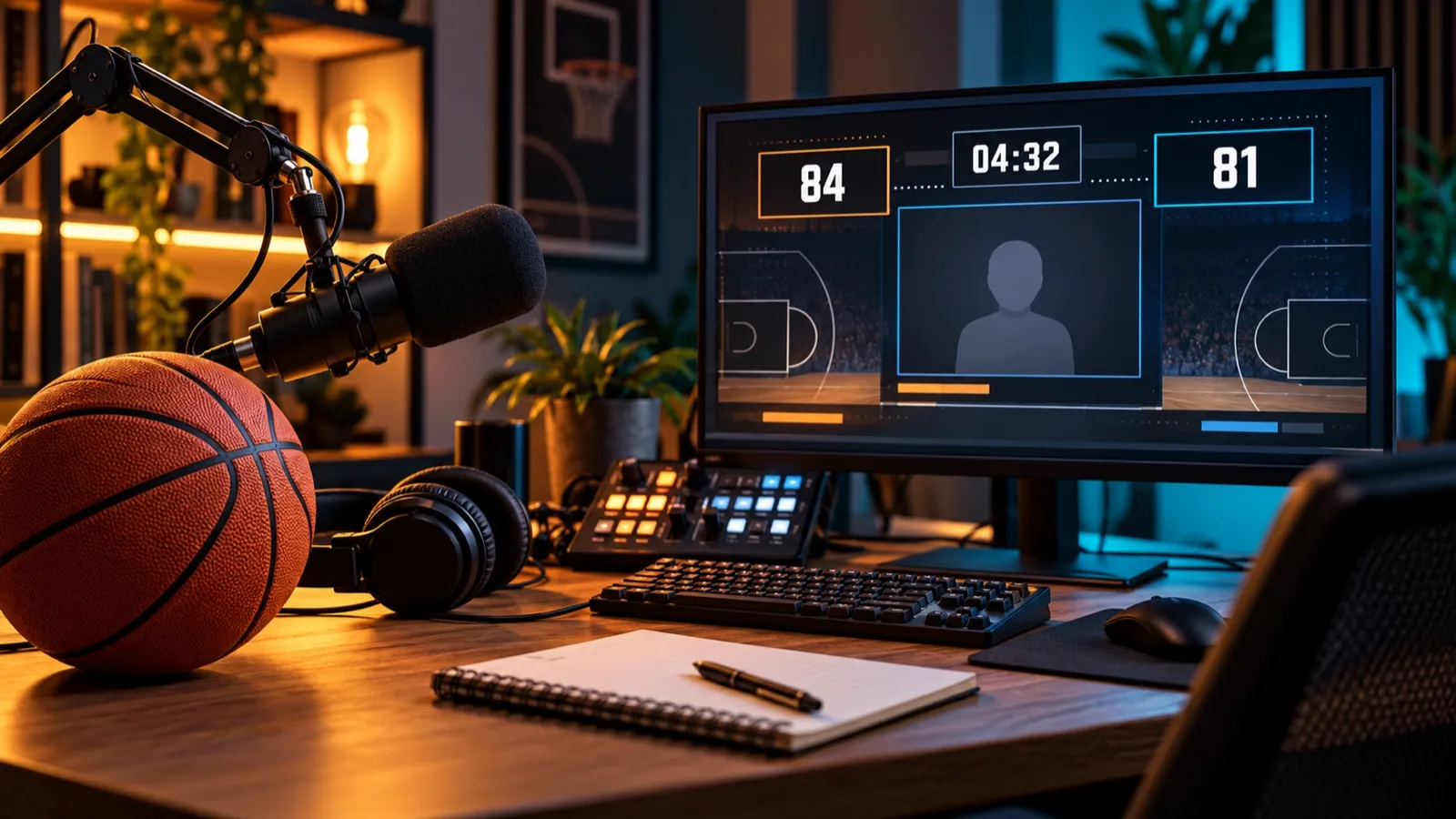
Editorial illustration of a basketball commentary streaming setup.
Decide what kind of show you are making
This guide is about producing your own commentary and analysis: your camera, voice, graphics and community discussion, without including the game broadcast’s video or audio. Prepare a short introduction so that newcomers understand what to expect from your channel.
Define the scoreboard’s role too. It should represent the point in the game you are discussing. During your pregame show, make it clear that play has not started. At halftime, add a halftime label in OBS alongside the score. When you finish the show, remove any clock that is still running.
Give your voice and data the same reference
If you watch the game on one feed and check the score on another website, those sources may refer to different moments. Use the picture you are watching as the reference for your manual scoreboard, and occasionally state the quarter and time you have reached.
Imagine describing a possession while a results page already shows the next basket. Copying that score would reveal the outcome ahead of your commentary. Wait until you reach the play on your chosen reference, then update the score. If reloading changes your position in the game, check the points, quarter and clock before continuing.
This helps keep your own show consistent. Individual viewers may have different delays; displaying a clock does not automatically synchronise the audience. If you have a co-host, agree on a reference before going live and check it again after an interruption.
Display only what you can maintain
Start with team names, points and quarter. Add the game clock when you can handle its stops and restarts. In a fictional example, “84–81, third quarter, 04:32” gives viewers a reference without filling the screen with statistics.
Keep each team on the same side throughout the show. Choose distinct abbreviations and check that the score remains readable when the preview is reduced to phone size. Leave room for your camera and keep chat messages clear of the numbers.
Practise a correction as well. If you award points to the wrong team, fix the entry and check both totals before continuing. A short pause to recover a reliable reference is preferable to building more plays on an incorrect score.
Prepare a twelve-minute clock
The NBA’s timing rules (opens in a new tab) specify twelve-minute regulation quarters. Check your template’s starting duration and set it to 12:00 before play begins; do not assume its defaults match this competition.
Your displayed clock needs an operator. Pause and resume it using your view of the game as a reference, and correct it when it drifts. When moving to the next quarter, check both the period and duration before starting it. Rehearse that transition: a correct setup at the start of the show does not ensure that the next quarter will begin with the time you intended.
Bring that control into your scene with OverlayOn
For this setup, OverlayOn brings scoreboard changes together in an editor. You can customise names and colours, add +1, +2 and +3 to either team, change the quarter, and set, pause or resume the clock. You update the score through those controls while keeping your scene’s design in place.
Create a basketball scoreboard, prepare the teams and copy its URL into a Browser Source in OBS (opens in a new tab). Set the source area to suit the design and check its size in the programme output. For the initial setup, follow our guide to adding a basketball scoreboard in OBS.
This is a manual workflow: you enter the points and operate the clock. It does not include an automatic feed of official NBA scores. If you will also be commentating, practise the controls before your first game or assign them to someone following the same reference.
Rehearse a complete sequence before going live
Make a short local recording and work through these actions:
- Introduce the teams and check that each appears on the correct side.
- Add one, two and three points, then correct a deliberately mistaken entry.
- Start and pause the clock, then adjust it to recover your reference.
- Change the quarter and check the configured duration again.
- Switch to the halftime scene and return to commentary; check that the data is retained and readable.
Play back the recording and listen to your voice while watching the score. This tests whether you can operate the scoreboard and commentate clearly, or whether you need a simpler scene or another person handling the controls.
With the teams prepared and the controls rehearsed, you can focus your show on explaining the game. Create your basketball scoreboard in OverlayOn and get your scene ready for your next stream of the season.