August 24, 2026
SUBtember 2026: plan your countdown and subathon
Twitch announced SUBtember 2026 with subscription discounts, Bits bonuses, and gifted subs. Check the dates and prepare a countdown or subathon.
On August 18, 2026, Twitch announced (opens in a new tab) the return of SUBtember, its annual subscription promotion. The campaign starts on August 28 at 10:00 PT and ends on October 1 at 10:00 PT. During that period, eligible viewers can access subscription discounts, Bits bonuses, and sponsored gifted-sub incentives from State Farm and Minecraft Dungeons II.
The 2026 edition combines several opportunities with different conditions. For streamers, the useful part is knowing which ones apply to every monetized channel, which need to be enabled in advance, and which are limited to participating channels.
What Twitch announced and when
According to the official announcement (opens in a new tab) and the SUBtember 2026 FAQ (opens in a new tab), viewers receive 25% off eligible 1- and 3-month subscriptions and 30% off eligible 6-month subscriptions. Purchases are available on web and mobile. Twitch covers the discount, so the streamer receives the same payout as for a full-price subscription.
SUBtember is split into several windows:
- August 28 at 10:00 PT to October 1 at 10:00 PT: eligible subscription discounts and an exclusive badge, unlocked by subscribing, gifting subs, or using Bits.
- August 28 at 15:00 PT: the State Farm Gamerhood finale, with nearly 100,000 gifted subscriptions and extra bonuses only on participating Gamerhood channels.
- September 12 at 10:00 PT to September 18 at 16:00 PT: Twitch adds 10% bonus Bits when viewers spend 100 Bits or more on Custom Power-ups. This offer works only on the web and on monetized channels that have Custom Power-ups enabled.
- September 26 at 10:00 PT to October 1 at 10:00 PT: the Minecraft Dungeons II finale. For every new community gift purchase of five or more one-month subscriptions, Minecraft Dungeons II adds one subscription at the same tier.
The two official pages differ on the final window: the general announcement names September 25, while the operational FAQ gives September 26 at 10:00 PT. This article uses the more precise FAQ timing for planning, but check it again before going live.
A standard renewal of an existing recurring subscription is not discounted, but that does not exclude every current subscriber. Viewers can still qualify by extending a monthly subscription to a multi-month plan, moving from 3 to 6 months, or upgrading tiers. Prime and gifted subscriptions can qualify when converted to paid subscriptions. Twitch Turbo, subscriptions canceled and repurchased during the promotion, and unchanged recurring subscriptions do not qualify.
Why it matters to streamers
The useful calendar depends on your channel. The general discounts apply across monetized channels; the Bits bonus requires Custom Power-ups, and Gamerhood only applies to participating channels. For most streamers, the most useful moments will be the general discount, the Bits week, and the final gifted-sub bonus.
Putting those windows on screen helps viewers understand what is happening and how much time remains. A countdown can keep the stream goal visible and react when someone subscribes, gifts subs, or uses Bits. That turns an offer usually seen only at checkout into something the community can follow in real time.
There are also different audiences to address: viewers who do not currently pay, people who want to convert a Prime or gifted subscription, and existing subscribers who can extend their term or upgrade their tier. Your on-stream message should reflect those options without promising a discount on an ordinary renewal.
How to turn each window into a live-stream moment
Choose only the windows that apply to your channel
Convert the PT times to your own time zone and choose one or two moments with a clear goal. If your channel is not part of Gamerhood, do not plan around its 100,000 gifted subs. Focus on the general discounts, the Bits week, or the final community-gift incentive.
Give each period one simple target: new subscriptions during the opening weekend, Custom Power-up interactions during the Bits window, or gifted subs during the finale. You do not need to run a month-long subathon. A limited session is easier to explain, promote, and sustain.
Explain the mechanic on screen
Show the closing time, the time remaining, and one short rule for each action. Decide how much time a subscription, a gifted-sub bundle, or 100 Bits adds. Publish the rules before you begin and cap the extra time at an amount you can realistically stream.
The countdown does not determine whether a purchase meets Twitch's promotional terms. Its job is to show how the audience's participation affects your stream and to provide immediate visual feedback.
Build the subathon with OverlayOn
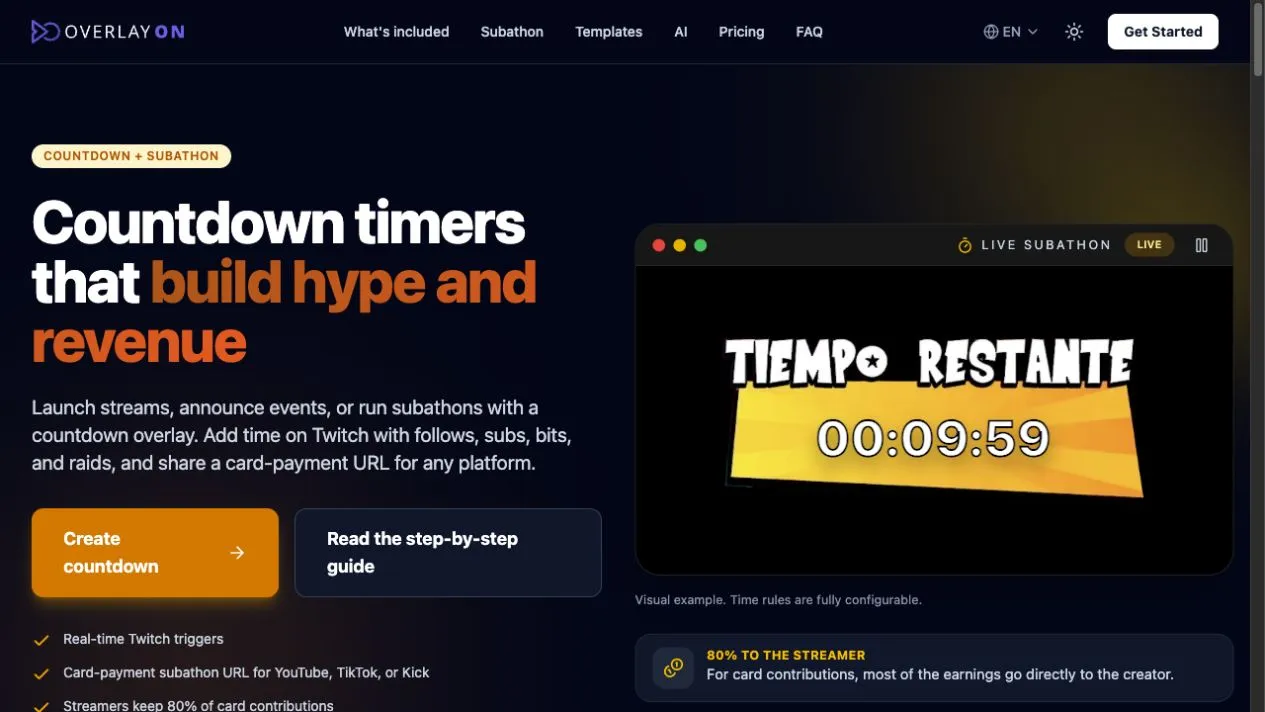
Twitch Creator Camp (opens in a new tab) specifically recommends subathons as a way to celebrate SUBtember. With OverlayOn, you can set up the mechanic without building a timer:
- Pick a template and customize its colors, type, and background.
- Set a starting duration or end date, then enable subathon mode.
- Connect your channel and choose how much time each subscription tier, every 100 Bits, and optional follows or raids should add.
- Copy the overlay URL into OBS, Streamlabs, or vMix and test the events before going live.
Viewers can then see how much time remains and what changes after every action, without you having to build or update the timer manually. If you also stream on YouTube, TikTok, or Kick, you can share OverlayOn's card-contribution URL so that part of your community can add time too; those contributions are separate from Twitch's promotion.
Create your countdown and configure your subathon in OverlayOn.
Sources
- Twitch: official SUBtember 2026 announcement (August 18, 2026) (opens in a new tab)
- Twitch: official SUBtember 2026 FAQ (opens in a new tab)
- Twitch Creator Camp: monetization moments and subathons (opens in a new tab)
- Streamer.Guide: SUBtember 2026 dates, discounts, and conditions (opens in a new tab)